
- Support Home
- JuiceboxBuilder
- Juicebox Plugins
- Creating Galleries
- Configuration Options
- Button Bar
- Embedding Guide
- » Embedding in a HTML Page
- » Using an External Gallery Folder
- » Using an External jbcore Folder
- » Embedding Multiple Galleries
- » Embedding Using Dreamweaver
- » Embedding in a Joomla Site
- » Embedding in a Drupal Site
- » Embedding in a Web Template Site
- » Embedding with iWeb
- » Embedding with Adobe Muse
- » Troubleshooting Pathing Problems
- » Expand Gallery Behavior
- Frequently Asked Questions
- Upgrading Juicebox
- Version History
- Sharing, SEO and Shopping Cart
- Multi-Size Image Support
- Password Protection
- Theming Guide
- Using the API
Overview
JuiceboxBuilder is a desktop application that allows you to easily build Juicebox galleries. JuiceboxBuilder will automatically resize images, create all the required files and generate HTML embed code.
For an overview of JuiceboxBuilder's features, take the JuiceboxBuilder Tour.
Installing JuiceboxBuilder
To install JuiceboxBuilder, do this:
- If you don't have it already, download and install Adobe AIR. Be sure to use the most recent version with WebKit support.
- Download and unzip Juicebox to your desktop. Juicebox-Lite can be downloaded from here. The Juicebox-Pro download link is emailed to you upon purchase.
- Double-click the
JuiceboxBuilder.airfile in the download folder to install JuiceboxBuilder. Installation issues? Check here to resolve. - Run the application to build your first gallery.
Building Your First Gallery
Ready to build your first gallery? Here's how:
- Run JuiceboxBuilder.
- Click 'New Gallery...'.
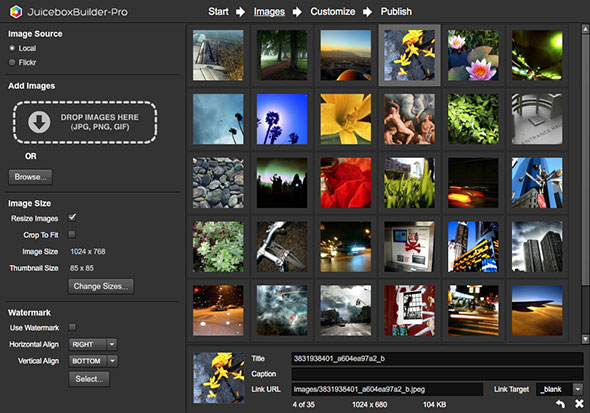
- Browse for images or add via drag and drop. To change image order, drag and drop images in the image list, or do Images -> Sort in the top menu. Enter image caption text in the image list items.
- Click 'Customize' button on top menu. Modify config options, or select a gallery preset. View a description of all config options here. To return an option to it's default value, click the small 'X' button at right of the option.
- Click 'Publish' button on top menu. Click 'Browse...' to a select a new gallery folder location. Click 'Save' to save your new gallery and open it in a browser.
Image Captions
Images may have both a Title and a Caption. The title shows slightly larger above the caption.
- By default, image titles are populated with the filename of the image. To remove this, do Images -> Titles -> None in the top menu.
- Manually set titles and captions by selecting the image then entering text into the text fields at bottom. HTML tags are supported.
- Titles and Captions may be automatically loaded from EXIF image metadata. JuiceboxBuilder supports a subset of EXIF called IPTC which is used by Photoshop, Lightroom etc. To load ITPC image titles in JuiceboxBuilder, do Images -> Titles -> Use ITPC Title. To load ITPC image captions, do Images -> Captions -> Use ITPC Caption.
Presets
A Preset is a collection of previously saved config options. Use presets to easily create multiple galleries with shared options. Once you have customized your gallery to your liking, you can save the current gallery config options as a 'preset'.
- To save current gallery options as a preset, do 'Presets -> Save Preset...'. This will save the current gallery options as a preset file. By default, preset files are saved in a 'JuiceboxBuilder-Pro' folder in the user's documents folder.
- To load a preset, do 'Presets -> Load Preset...'. This will overwrite the current gallery options with the contents of the preset file.
Known Issues
JuiceboxBuilder has the following known issues:
- Audio playback does not work in JuiceboxBuilder. To test audio playback, preview the gallery in a browser.
- The Customize panel live gallery preview may not render all elements with 100% fidelity (for example thumbnail frames and drop-shadows). To get a more accurate preview do Gallery -> Preview.
- JuiceboxBuilder assumes the default config file location (config file is in the gallery folder and is called config.xml).
- If 'expandInNewPage' is set to TRUE, expanding the gallery will not work within the JuiceboxBuilder interface, or if the gallery is run locally. To avoid this issue, please upload your gallery to a webserver.
- JuiceboxBuilder will not accept images with the following characters in the filename: #, ? and '. Please rename files before importing to JuiceboxBuilder.
Installing On MacOS Catalina
On MacOS Catalina (10.15) and higher you need to perform the following steps before first running JuiceboxBuilder. This is due to a restriction on 32 bit apps in MacOS Catalina.
- Install JuiceboxBuilder as normal.
- Open Terminal app.
- Copy & paste this text and hit return:
cd /Library/Frameworks

sudo xattr -r -d com.apple.quarantine ./Adobe\ AIR.framework - Terminal will prompt for your regular system login password.
- JuiceboxBuilder will now run as normal.
Installation Issues
- If you receive the message "The application cannot be installed due to a certificate problem." when running the JuiceboxBuilder installer, you need to uninstall the previous version of JuiceboxBuilder before installing the new version.
- Windows: Use Control Panel -> Add / Remove Programs.
- Mac : Delete the 'JuiceboxBuilder' file from the Applications folder. Delete any copies of JuiceboxBuilder-Pro on a backup drive. Then do 'Empty Trash'.
- If you receive the message "The application could not be installed because the installer file is damaged" when running the JuiceboxBuilder installer:
- Windows - You could be launching the installer from a restricted file system or network drive. Try copying the installer to your desktop and install from there.
- Mac - Unmount drives other than main drive (including time machine backups) and retry installation.
- It is possible that the application didn't download completely. Retry downloading the installer.
- On Windows you may need to right-click and select 'Run as Administrator...' before running the installer.
- JuiceboxBuilder requires Adobe AIR 2.0 or higher. View Adobe AIR system requirements. To resolve Adobe AIR installation issues, check the AIR Installation Troubleshooting Guide.